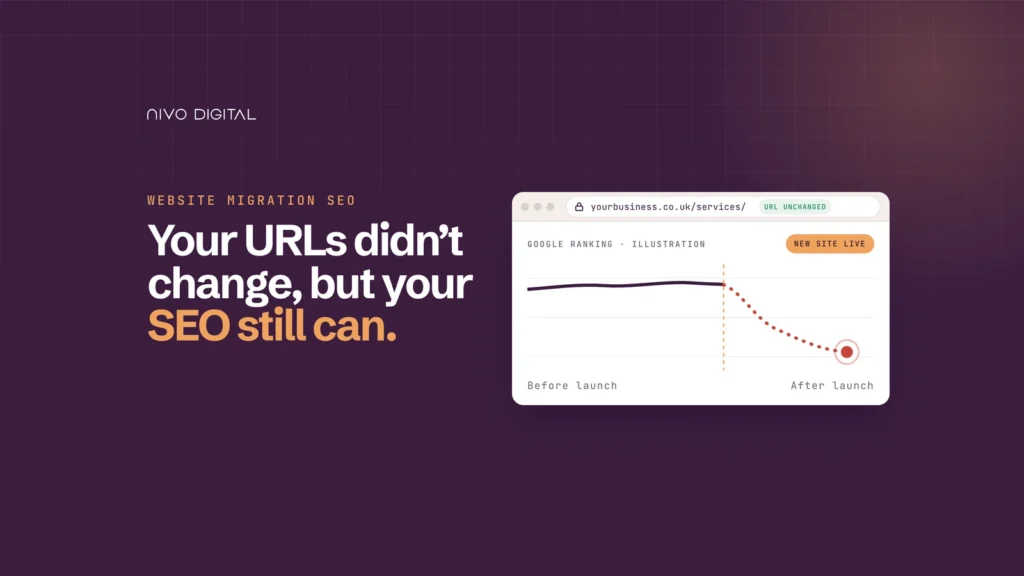
If you're planning a new website, you've probably heard the standard advice on website migration SEO: keep your URLs the same, redirect any that change, and your rankings will be fine. Redirects matter, but they're only part of the picture.
Google doesn't rank web addresses. It ranks what it finds when it visits them: the code behind the page, the headings, the links between your pages and the way your server responds. A new design, a new page builder or a new host can change all of that while every URL stays the same.
When we rebuilt the Nivo Digital website in October 2026, the redirects were only one part of what we had to check. This guide walks you through what can change behind the scenes, which projects carry the most risk, from a full redesign to a move to Elementor, what to check before and after launch, and what we learned from our own rebuild.
Quick answer
Yes. A website migration or redesign can hurt SEO even when every URL stays the same. Google reads the code behind each page, not just the address. A redesign, page builder switch, Elementor upgrade or hosting move can remove canonical tags, hide links from crawlers, change headings or make missing pages look live. Check these before launch and monitor Search Console for several weeks afterwards.
Why can SEO change if URLs don't?
Because Google doesn't just look at the URL. Every time it visits a page, it reads the code behind it, follows the links and notes how your server responds. Change any of that, and Google sees a different page, even though the URL looks the same.
In a Search Engine Land article published on 9 November 2026, Bharath Ravishankar set out four ways this happens. Canonical tags can disappear. Navigation links can become uncrawlable. Content can move from the initial HTML into JavaScript that loads afterwards. And missing pages can return a "200 OK" response instead of a 404.
Each one matters for a different reason.
Canonical tags
A canonical tag tells Google which version of a page is the main one. If the new template stops outputting it, or outputs the wrong one, Google has to guess. On WordPress, canonicals usually come from an SEO plugin such as Rank Math or Yoast. A new theme, a plugin conflict or settings that weren't carried across can quietly switch them off.
Internal links
Links between your own pages show Google what's important and help it find everything. Menus rebuilt as JavaScript toggles, buttons without real links, or a footer that lost its service links can all cut pages off from the rest of the site.
Rendering
If key text or links only appear after scripts run, Google has to render the page to see them. That adds a step where things can go wrong. Content that sits in the initial HTML is the safer option.
Server responses
Google's own documentation says that if a page returns a success code but its content looks like an error, it's reported as a soft 404. New templates and hosting set-ups sometimes send a 200 for pages that no longer exist, which wastes crawling and can leave empty pages in the index.
Which website migrations carry the most SEO risk?
The ones that carry the greatest risks are the ones that change how your pages are built, not just how they look. How risky each project is depends on what changes underneath. Switching page builders usually changes the most, because every page is rebuilt from scratch. A redesign or an Elementor v4 upgrade can change a lot or very little, depending on how much of your templates and content changes. A hosting move shouldn't change your pages at all, but it can still cause problems if redirects, caching or server responses aren't set up carefully.
Google splits site moves into two kinds: those with URL changes and those without. Its guide to site moves without URL changes covers hosting and CDN switches. Many of the projects our clients bring us fall into the "no URL change" group, but each one changes something different underneath.
Project
What changes underneath
What we check first
Redesign on the same domain
Templates, menus, headings, page layout
Heading structure, internal links, canonicals
Switching page builder (e.g. WPBakery to Elementor)
How every page's content is stored and output
Leftover shortcodes, headings, missing content
Elementor v3 to v4 upgrade
The HTML each element outputs
Headings, links and content after conversion
Hosting move
Server, caching, response codes
404s, redirects, speed, HTTPS
Redesigns on the same domain
This is the project people least often treat as a migration, which is why website redesign SEO is so often left until after launch. The URLs stay, so it feels like a visual refresh. But a new menu, new templates and rewritten page sections can change which pages are linked, how headings are ordered and what text Google sees first.
Switching page builder
Switching from WPBakery to Elementor means every page gets rebuilt, even when the URLs and the words stay the same. WPBakery saves layouts as shortcodes, so anything that isn't rebuilt carefully can end up showing as raw code on the page, or disappearing altogether. Headings are the other thing to watch. It's easy to make text look like a heading without tagging it as one, and search engines go by the tag, not how it looks. If you're planning the switch, our WPBakery to Elementor service handles the rebuild for you.
Upgrading to Elementor v4
Upgrading to Elementor v4 can look like a small job, because your pages often look exactly the same afterwards. Underneath, though, the code has changed. Elementor's version 4 update guide explains that its new Atomic Elements output plain HTML without the extra wrapper layers v3 used, which should make pages lighter and faster. That's good news, but any change to the code is worth checking. Once a page is converted, make sure its headings, links and key content are still there and still marked up properly. Our v4 upgrade checklist walks you through the rest of the preparation.
Moving host
Moving to a new host shouldn't change your pages at all, which is why it's easy to assume nothing can go wrong. The problems tend to hide in the set-up. Redirects you'd added over the years can get left behind on the old server. Caching can keep showing visitors an old version of a page. And pages that no longer exist can start telling Google they're fine, instead of returning a proper error. If your site looks different to different people after a move, our guide to why websites look different explains what's going on.
What should you check before launch?
Before anything goes live, make a record of how your current site looks to Google, then check the new version matches it. Every page should still load properly, still point to itself as the main version, and still have its page title, headings and links. A crawling tool can pull most of this together for you. Without that record, you'll have nothing to compare against if your traffic dips after launch.
Take a baseline
Export the last three months of Search Console performance data: clicks, impressions and your top pages and queries.
Note how many pages Search Console reports as indexed.
Crawl the live site with a tool such as Screaming Frog and save the results. This gives you every URL, title, meta description, canonical, heading, and response code as they stand today.
Compare the new site against it
Crawl the staging site the same way and compare the two crawls page by page.
URLs and response codes. Every page that returns a 200 today should still return a 200. A page that doesn't exist should return a 404, not a 200.
Canonical tags. Each page should still point to itself, unless you've deliberately chosen otherwise.
Titles and meta descriptions. Check that these are carried across from your SEO plugin rather than falling back to defaults.
Headings. One H1 per page, and H2s that are real headings rather than styled text.
Internal links. Menus, footers and in-content links should be real, crawlable links. Look for pages that have lost links pointing to them.
Indexing settings. Staging sites are usually set to noindex. Make sure that setting doesn't carry over to the live site.
Robots.txt and XML sitemap. Check that neither blocks anything it shouldn't and that the sitemap lists your real pages.
Structured data. If you used schema for reviews, FAQs, jobs or your business details, check it's still output.
Images. Check images still load and keep their alt text.
Forms and key features. Submit every form and test anything visitors rely on, like booking tools or calculators.
Desktop and mobile. Check every page on both, not just the homepage.
Links to staging. Search for any link or redirect that still points to your staging site rather than the live domain.
What did we find on our own rebuild?
Our rebuild did change some URLs, so it wasn't a pure same-URL move. The bigger lesson was how much needed checking beyond the redirects: links that could still point at the staging site, SEO settings that had to carry across, and a styling problem that only appeared once the site was live.
We rebuilt nivo.co.uk with Elementor and Claude, which we've written about in how we rebuilt our website. This is what happened on the SEO side.
What changed and what stayed the same
The new site went live on 6 October 2026, about 11 days after we started building it on 25 September. We stayed with the same host, Flywheel, and built everything on a separate staging site first.
Every page was rebuilt in Elementor using Elementor MCP and Claude Code, with a mix of classic v3 widgets and v4's Atomic Elements. Rank Math stayed in place for SEO settings and redirects.
Some URLs did change. We mapped 152 redirects in a spreadsheet and set them up in Rank Math, and launched with 71 pages.
152
redirects mapped
71
pages at launch
6 Oct
2026 launch
Flywheel
same host
What we checked
Before launch, we went through:
page URLs and the redirect plan
page titles, meta descriptions and other SEO settings
the XML sitemap, robots.txt and indexing settings
internal links, making sure they pointed to the live site
forms and key features
every page on desktop and mobile
our Elementor templates and reusable components
Once the site was live, we went back through the pages, layouts, features and SEO settings again.
What went wrong, and how we spotted it
The easiest mistake on a rebuild like ours is a redirect or internal link that still points to the staging site instead of the live one. Checking for those was one of the most important parts of our launch.
The main problem came straight after launch, when some Elementor styling didn't display properly on the live site. Restoring the missing page styles and clearing the Flywheel cache fixed it.
A month later, on 4 November, we found broken images on four older blog posts and fixed them. We can't say for certain what caused them, but it's a good reminder that checks shouldn't stop after launch week.
What the data shows so far
The clearest change in Search Console is in indexing. On 3 October, three days before launch, Google had 84 of our pages indexed. By 4 November, that had risen to 103.
Over the same period, the number of pages Google knew about but wasn't indexing rose from 63 to 123. That doesn't automatically mean the rebuild caused new problems. Old addresses that redirect to new ones can appear in this report, which is normal for any site that has redirects. As of 13 November, Search Console showed 55 pages with redirects, 7 pages returning a 404 and 2 redirect errors. We check those regularly and decide, page by page, whether each one needs a redirect or should stay as a 404, which is the right response for a page that no longer exists.
Our rank tracking in Semrush gave us one encouraging sign. On 7 October, the day after launch, nivo.co.uk was in position 39 for "Elementor agency Bristol". By 31 October, it was in position 1, and it was still there on 15 November. It's a very specific search term, and we can't credit the rebuild alone for the jump, because rankings move for many reasons.
These are observations from the weeks after launch, not proof of what the rebuild did. A few weeks is a short window, and we kept publishing after launch, so not all of these changes are down to the rebuild.
What we take to client sites
We follow the same process on client sites: a staging site, testing, SEO checks, backups and reviews after launch. What our own rebuild added was a faster way of building with Claude Code and Elementor MCP, plus a reusable design system of 50 sections, 10 components, 22 global classes and 27 variables that makes the site easier to keep up to date.
How do you know the redesign worked?
You'll know your redesign has worked by measuring it against the goal you set before launch. Most redesigns have a clear job to do, like bringing in more enquiries, speeding up the site or making your services easier to understand. Write that goal down before you go live, note the signs that would show it's working, then check them in the weeks that follow.
The Nielsen Norman Group makes a similar point about development generally in its research-in-the-loop article. As AI tools speed up building, it suggests each release should state what the team expects to happen and which measurable signs would show it worked. Faster building only helps if someone checks whether the change did its job.
Watch Search Console for the SEO side
For the first few weeks after launch, check Search Console regularly.
Page indexing report. Look for rises in "Not found (404)", "Soft 404", "Excluded by noindex tag" or "Alternate page with proper canonical tag".
Performance report. Compare clicks and impressions for your top pages against your baseline. Some movement in the first weeks is normal. A steady fall on specific pages points to something that changed on those pages.
URL inspection. For your most important pages, check that Google sees the content and canonical you expect.
Watch behaviour for the user side
Rankings only tell you whether people can find the site. Analytics and session recordings show whether the new design works once they arrive. Check enquiry form submissions, calls and clicks on key buttons against the same period before launch.
How to redesign a website without losing SEO
Plan the SEO checks before the design work starts, not after launch. Keeping your URLs is a good start, but it only protects the address. What protects your rankings is knowing what Google sees on each page today and checking it still sees the same thing after launch.
If you're planning a redesign, a move to Elementor or a v4 upgrade, Nivo Digital can plan the SEO checks alongside the build and monitor the site after launch. The team that builds your site stays on to look after it.
FAQs
Does a website redesign always affect SEO?
Not always, but it always carries some risk. A redesign that keeps URLs, content, headings, links and SEO settings the same is low risk. The more of those that change at once, the harder it is to know what caused any drop.
How long does it take SEO to settle after a redesign?
It depends on the size of the site and how much changed. Google has to recrawl your pages before it reflects the new version. Monitor Search Console closely for at least the first four to six weeks, or longer for larger websites, and investigate any steady fall on specific pages.
Do I need redirects if my URLs aren't changing?
Not for pages that keep the same address. You do need to keep any redirects you already have, and add one for any page you remove or rename. Hosting moves in particular can lose existing redirect rules.
Will upgrading to Elementor v4 hurt my SEO?
It shouldn't, and the cleaner code may help performance. But v4 changes the HTML behind your pages, so check headings, links and key content on converted pages. Our Elementor v4 upgrade service checks your pages as we upgrade them.
What's the difference between a website migration and a redesign?
A migration usually means moving something fundamental: the domain, platform, host or URL structure. A redesign changes how the site looks and is organised. In practice, the line blurs, because a redesign can change the code underneath as much as a platform move does.
What tools do I need to check a redesign?
Google Search Console is free and shows indexing and performance. A crawler such as Screaming Frog lets you compare the old and new site page by page. Both are worth setting up before you start.