Elementor v4 has been out since March 2026, and new releases arrive every week or two. If your site was built on Elementor v3, you've probably seen the Atomic Editor prompts and wondered two things. Will updating break your site? And do you need to rebuild it?
Updating Elementor doesn't change your existing pages. The part that needs planning is the Elementor v4 upgrade itself: switching on the new Atomic features and building with them. This Elementor v4 upgrade checklist covers what to check first, where to find it in WordPress, and what to watch for once you start.
We rebuilt our own site, nivo.co.uk, on Elementor v4, and at launch in October 2026 it had 71 pages built from a shared design system of 22 global classes, 27 variables and 10 components. So this isn't Elementor's documentation rewritten. It's what worked for us, what caught us out and what we'd do differently, so you can prepare for the same problems before they reach your live site. Ours was a fresh build on v4 rather than an upgrade of an older v3 site, and we point out where that makes a difference. If you're still deciding whether to upgrade at all, start with our guide: Should you upgrade to Elementor v4?
An Elementor v4 upgrade checklist has five stages: check that your hosting meets Elementor's requirements, find out which add-ons and templates your pages rely on, take a tested backup and plan your rollback, try the Atomic Editor on a staging copy with variables and classes set up first, then go live in stages. Your v3 pages keep working throughout, so nothing needs rebuilding.
The Elementor v4 upgrade checklist
Do you need to rebuild your site for Elementor v4?
Is your hosting and WordPress setup ready?
Which add-ons and widgets does your site depend on?
How do you prepare safely before changing anything?
How should you set up classes, variables and components?
How do you go live without breaking anything?
What problems should you watch for?
Here's the whole checklist in one place. Work through it in order: each stage gets its own section further down, with where to find things in WordPress and what we learnt doing it ourselves.
Note your WordPress, Elementor and Elementor Pro versions
Check your PHP version, memory limit and database against Elementor's requirements
Check whether Atomic features are already switched on
Turn off automatic updates for Elementor and Elementor Pro while you prepare, so the two can't update out of step
List every Elementor add-on plugin and check each one for v4 or Atomic support
Use Element Manager to see which widgets your pages use, and which plugin provides each one
Note any custom CSS or code in your theme, templates or a code snippets plugin, especially CSS written for v3 widgets
List the headers, footers, popups and templates used across many pages
List the forms, tracking and integrations that must keep working
Take a full backup of your files and database, and check you can restore it
Set up a staging copy of your site, and check its hosting can cope with the editor on larger pages
Update Elementor and Elementor Pro together on staging, and test them as a pair
Plan your rollback: how to switch Atomic features off, roll back a version and restore your backup
Decide what stays as v3 for now and what you'll build with Atomic Elements first
Switch on Atomic features on staging
Set up variables (colours, fonts, sizes) and a small set of global classes, named by role rather than colour
Build or rebuild one section or template with Atomic Elements
Check it at desktop, tablet and mobile widths
Retest forms, popups, tracking and key pages
Take a fresh backup, then repeat the change on your live site or push staging live
Clear your caches, check live pages while logged out and check your sitemap
Measure key pages before and after if speed matters to you
Rebuild other templates and pages in stages, as they're due for updates
Free download
Want something to work through with your team? Our 16-page checklist expands each stage with explanations, links to Elementor's documentation, a rollback plan, a test matrix and space to record what you find.
Download free checklist ↓Free PDF, 16 pages, no sign-up. For a preview of every section, and how agencies can share it with clients, see the free Elementor v4 readiness checklist page.
Nivo Digital · PDF
Elementor v4 Upgrade Readiness Checklist
Website and hosting readiness
Existing website compatibility
Preparing for Elementor v4
Building with Atomic Elements
Testing and launching
No, and that comes straight from Elementor. Its own FAQ puts it simply: "No, you don't need to rebuild anything." When you update an existing site to Elementor v4, your pages stay exactly as they are and your v3 widgets keep working.
That's because the new Atomic features are opt-in on existing sites. Only new installs have had them switched on by default since April 2026. When you're ready to turn them on, your v3 widgets and the new Atomic Elements can sit on the same page.
The flip side is that there's no tool yet to convert your v3 pages to v4. Elementor says syncing and migration options will come in future versions, but there's nothing on its roadmap at the time of writing. So moving to Atomic Elements is something you plan and build yourself, a section at a time.
That's why we'd suggest most site owners leave their current pages alone and bring v4 in gradually: new pages first, then sections and templates as they come up for changes. A full rebuild makes more sense if a redesign is due anyway, or if your site leans on add-ons that are no longer maintained. It's a judgement call for each site, though, not a rule.
We went for a full rebuild of nivo.co.uk for three reasons. We wanted to make full use of the Atomic Editor rather than keep building on the older v3 structure. It was a chance to create a more consistent, scalable site with global classes, variables and reusable components. And we wanted to explore Elementor MCP alongside Claude, which we found helped us build pages and sections efficiently while keeping the design consistent. That makes ours a fresh v4 build rather than an upgrade of an existing v3 site, so it's closer to the "redesign due anyway" case than the gradual route most sites will take. We point out wherever that difference matters.
If you're still weighing that up, our guide Should you upgrade to Elementor v4? goes into the decision in more detail.
Before you touch anything in Elementor, take a look at your server. An underpowered or outdated setup is a common reason the editor runs slowly or won't load at all. Here are Elementor's current system requirements:
Requirement
Elementor's current requirement
WordPress
6.8 or later; latest version recommended
PHP
7.4 minimum; 8.3 or later recommended
Database
MySQL 5.6+ or MariaDB 10.5+
Memory limit
256 MB minimum for Elementor and Elementor Pro alone; 512 MB recommended, and may be needed with plugins such as WooCommerce; 768 MB for best performance
Browser for editing
Chrome, Edge or Brave 148+, Firefox 150+, Safari 26.2+ on macOS; editing on desktop only
Elementor
Latest version recommended; Atomic features are standard from 4.0
Elementor also mentions two hosting settings that can stop the editor from loading: X-Frame-Options must allow same origin, and a Content Security Policy frame-ancestors rule mustn't be set to "none". If that sounds like gibberish, don't worry. Your host can check both for you.
Versions and server details: Elementor › Editor › System › System Info, or Tools › Site Health › Info.
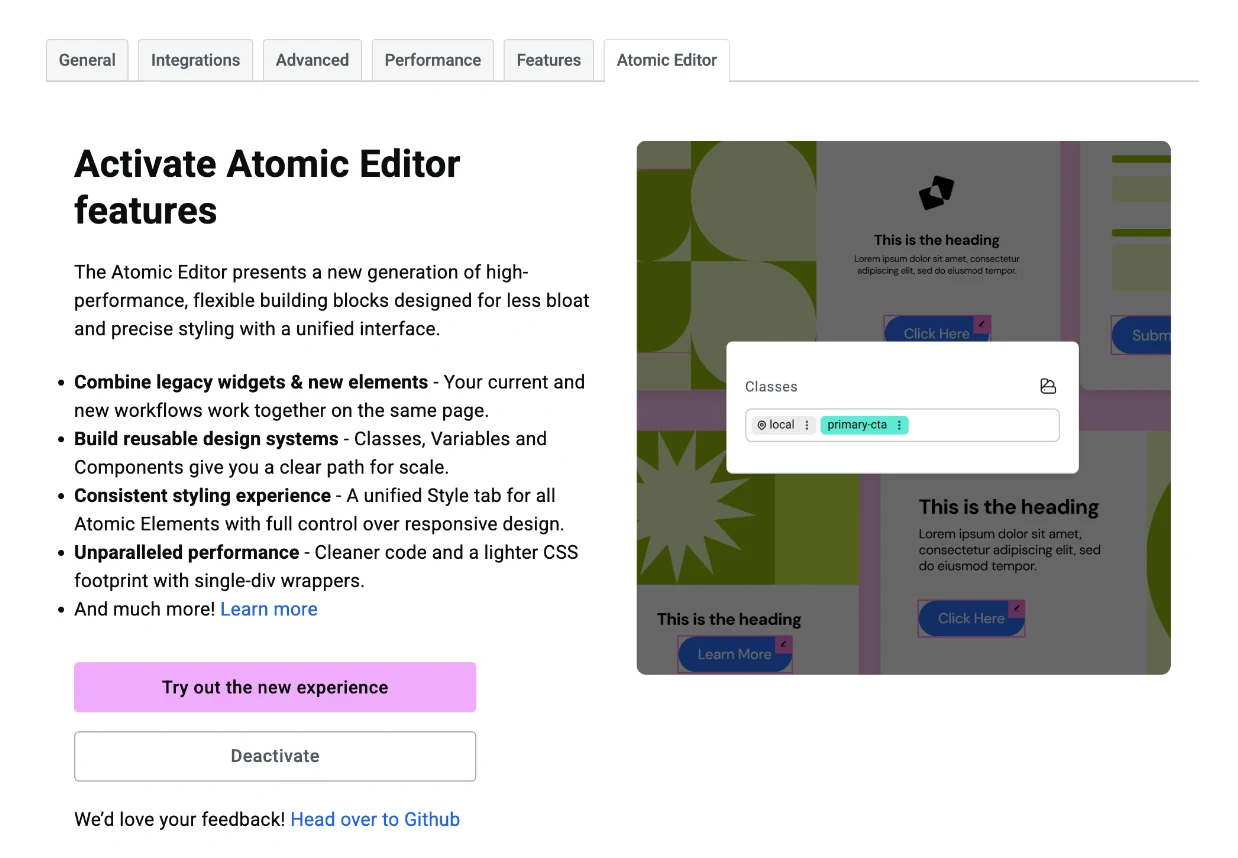
Whether Atomic features are on: Elementor › Editor › Settings › Atomic Editor tab. You'll see "Try out the new experience" and "Deactivate".
If your PHP version is behind, sort that out before anything else. Our article Is your website ready for PHP 8.2 end of life? walks through what's involved.
We checked every admin path in this section on our own live site, so what you see in WordPress should match. Where hosting showed up for us was on staging: it slowed down and sometimes timed out when we worked on larger pages through Elementor MCP and Claude (more on that in the preparation section below). We didn't pin that on a specific PHP or memory limit, but it's a good reason to check your staging resources before you start.
Add-ons are where most of the uncertainty sits. Elementor confirms your v3 widgets will keep working alongside Atomic Elements, but its documentation doesn't say whether third-party add-on widgets work with v4 features. That's down to each add-on's developer to confirm.
There are also two things worth knowing before you start:
Classes and variables only apply to Atomic Elements. Your v3 widgets and add-on widgets can't use them. There is a sync option that links v4 colour variables and typography classes to your v3 Global Colours and Fonts, but be aware that syncing fonts is limited to Typography only. Other font characteristics such as colour, size and weight cannot be synced.
Turning on v4 in an Elementor v3 site switches on other features too. Flexbox Containers, Nested Elements and the Top Bar come with it, and an Atomic Element dropped onto the canvas sits inside a v3 container.
Your custom CSS needs a look too. Atomic Elements render without the extra wrapper layers that v3 widgets use, so any CSS written for v3 widget markup won't style them. When you rebuild a section, that's a good moment to move those rules into classes.
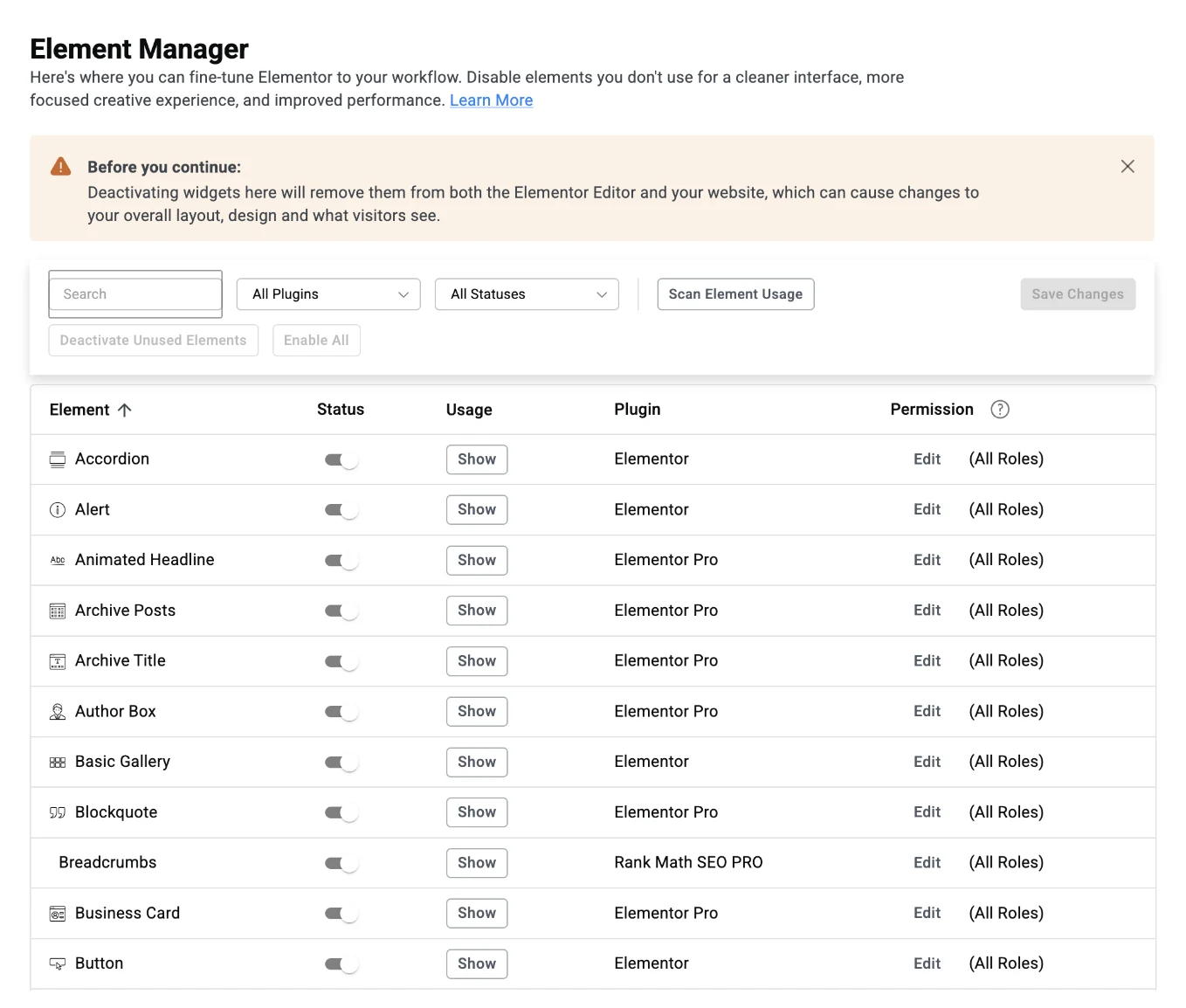
The quickest way to see what you're working with is Element Manager, under Elementor › Editor › System. It lists every widget on your site, the plugin it comes from, and a Usage column showing where it's used. Filter by plugin and you'll soon see how much of your site depends on each add-on.
Once you know which add-ons matter, check each one's changelog or support page for "Elementor v4", "Elementor 4" or "Atomic" before you switch anything on. Some developers spell it out: Yoast's version 28.0 changelog, for example, says it now works with Elementor's v4 release.
Users have also reported a couple of issues on Elementor's GitHub, such as local styles not showing on Atomic Elements placed inside a Template widget, and dynamic ACF image fields not working with the Atomic SVG element. These are user reports, not confirmed by Elementor.
Our own site runs the Hello Elementor theme with Elementor Pro, Rank Math SEO Pro and a cookie consent plugin, and we had no theme conflicts to report. We did keep the old v3 HTML widget for a few interactive pieces, like the Load More button on our Results page, so v3 and v4 really do sit side by side on our live pages. We also left the v3 Site Settings kit alone, because older blog content still relies on it.
Elementor's own advice is to back up before you switch on new or experimental features on a live site. We'd go a step further: keep your live site out of it completely until you've tested everything.
Before you switch anything on, get these four things in place:
Take a full backup of files and database, and check you can actually restore it. A backup you've never restored is a guess.
Set up a staging copy of your site and do all your testing there.
Update one plugin at a time, so you know what caused any problem. The exception is Elementor and Elementor Pro: they're separate plugins that need to stay in step, so update and test them together.
Write a retest list of your key pages, forms, popups and tracking, and check them after each change.
If you don't have staging or backups you can rely on yet, our website care plans include both.
Undoing a change is far less stressful when you've worked out how beforehand. Here are your options, from quickest to most thorough:
Switch Atomic features off. Elementor says they can be disabled at any time under Elementor › Editor › Settings › Atomic Editor. Your v3 pages carry on as they were.
Roll back to an earlier Elementor version. Elementor has a built-in rollback for the plugin. Back up your database first, because rolling back the plugin's code may not undo changes an update made to your data.
Restore your backup. If a rollback doesn't return the site to normal, restore the full backup you tested earlier.
We built the whole of the new nivo.co.uk on a private staging copy, with backups in place, and our live site stayed online and unaffected until we launched in October 2026. We never needed to switch off Atomic features or roll back at any point during the build. We worked through pages in small batches, and Sadie O’Callaghan, our website designer and developer, checked every one at desktop, tablet and mobile widths before it was approved. One thing did catch us out. Our staging server slowed down, or timed out completely, when we worked on larger pages through Elementor MCP and Claude. We didn’t confirm the exact cause, but staging sites often run on smaller hosting plans, so it’s worth checking that yours has enough resources before you start.
This is the part of v4 that changes how you work, so set it up before you build anything. Styling now lives in classes rather than in each widget's settings, and a bit of planning at the start saves you restyling page by page later.
Feature
What it does
Where to find it
Variables
What it doesStore colours, fonts and sizes once, so you change them in one place
Where to find itDesign System panel (droplet icon in the top bar) › Variables
Global classes
What it doesReusable sets of styles, such as a button or card style. Up to 1,000 per site since Elementor 4.1
Where to find itDesign System panel › Classes
Components (Pro)
What it doesReusable sections that stay in sync across the site, with chosen content editable on each page
Where to find itElements panel › Components tab
On top of these, every Atomic Element has its own local class for one-off styles. You can export and import classes and variables with templates and kits, which is handy if you look after more than one site. Elementor's help centre goes into more detail on the Variables Manager, the Class Manager and Components.
For us, v4 changed how we planned pages more than how we built them. We set up our colours, fonts and spacing first, then built every page from shared classes and components. Here's how that added up when we launched in October 2026. The site has grown since, but these were the starting numbers:
71
Pages
50
Reusable section layouts
10
Components
22
Global classes
27
Global variables
At launch (October 2026)
Variables hold our plum and apricot palette, two fonts, and sizes such as container width, gutter and section padding.
Classes cover shared styles: sections, containers, headings, body text, cards and buttons. Changing one updates every page that uses it.
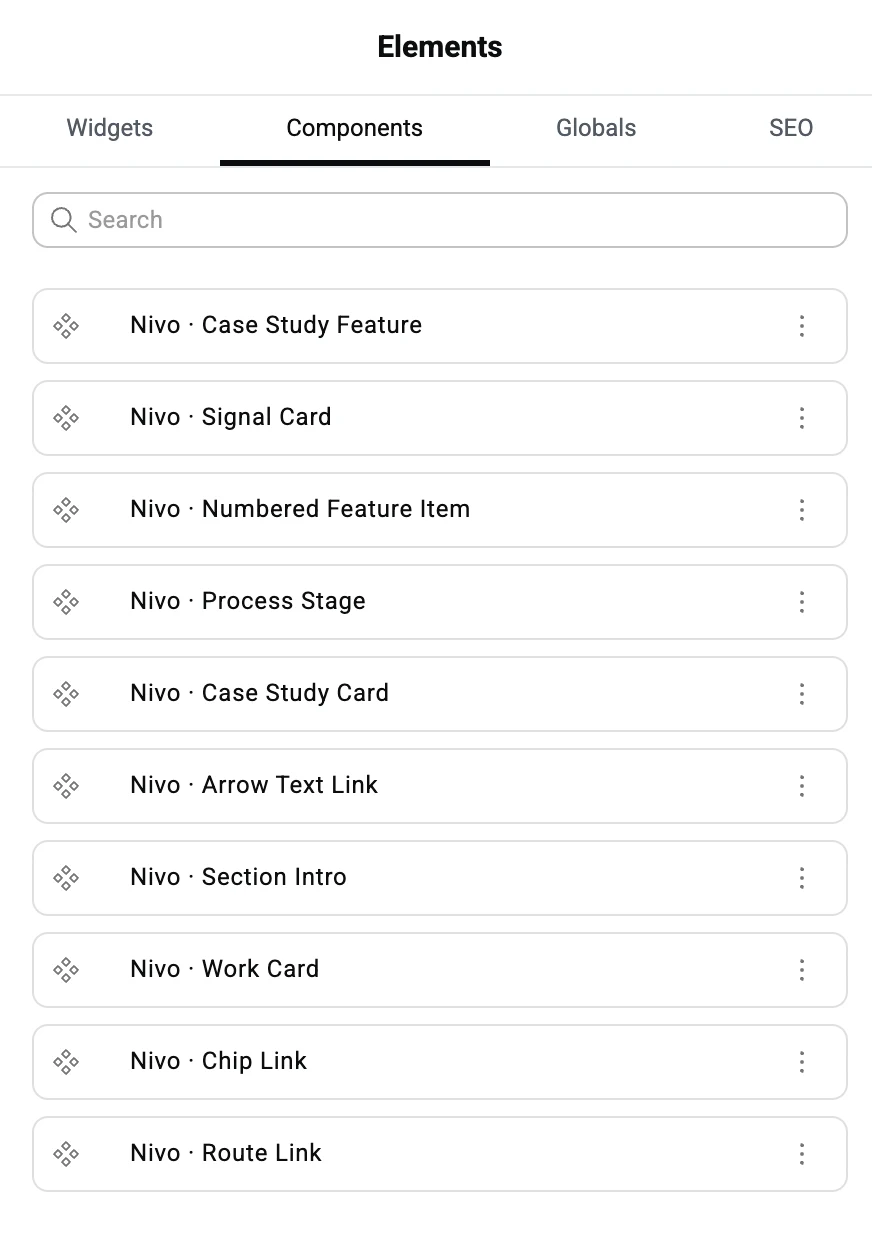
Components include our Section Intro, Arrow Text Link, Case Study Card and Work Card. Each appears on many pages, with only the text changing.
There's no single page template, either. Each page is put together from the section layouts it needs, so the pages don't all end up looking the same.
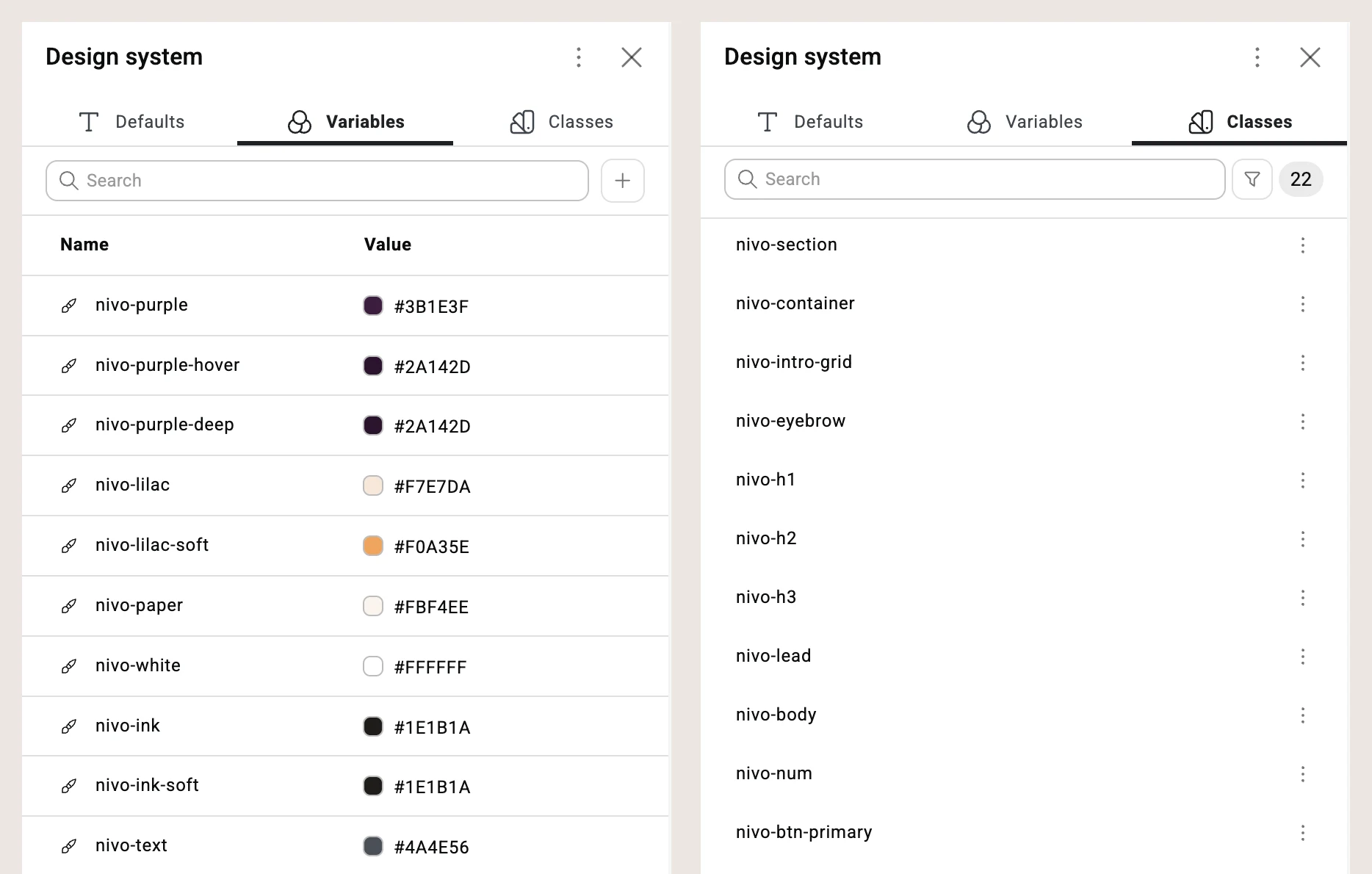
If we could pass on one lesson from this part, it's to name variables by their role, not their colour. Some of ours came from an earlier palette, which is why "nivo-lilac-soft" is now apricot. Names like primary, surface and text still make sense when the palette changes.
We built all of this with Claude and Elementor MCP. For the full story, read Rebuilding the Nivo website with Elementor MCP and Claude.
When it's time to go live, do it in stages rather than all at once. Once a section or template is working on staging, take a fresh backup, then either repeat the change on your live site or push staging live.
After each change, run through three quick checks:
Clear your caches, including any caching at your host, and check the pages while logged out. Logged-in views can hide what visitors actually see.
Run through your retest list, especially forms, popups and tracking.
Measure key pages before and after if speed matters to you. Elementor says v4 produces cleaner code, with one wrapper per element instead of several, but it also says gains may vary when v3 and v4 elements share a page. Measuring is the only way to know what changed on your site. Our Elementor speed optimisation service covers this.
From there, keep rebuilding other templates and pages as they come up for updates. We'd start with the templates used across lots of pages, like headers, footers and blog post layouts, because that's where the work goes furthest.
Here's one that tripped us up. After publishing pages on our rebuild, our host's cache and the SEO plugin's sitemap sometimes showed old versions. Now we clear the cache and check the sitemap every time we publish. If your changes aren't showing up, our guide Why your website updates may not show explains the usual causes.
The good news is that most v4 problems are predictable once you know where to look. Here are the ones Elementor documents, plus a few we ran into on our own rebuild.
Problem
Where it comes from
How to prepare
Add-on widgets can't use classes or variables
Where it comes fromElementor documentation
How to prepareLeave them as they are, or replace them with Atomic Elements when you rebuild that section
No automatic conversion from v3 to v4
Where it comes fromElementor documentation
How to preparePlan to rebuild gradually, starting with templates used across many pages
Speed gains may vary when v3 and v4 share a page
Where it comes fromElementor documentation
How to prepareMeasure key pages before and after
Features change with every release
Where it comes fromElementor changelog
How to prepareCheck the changelog and roadmap before you plan. Grid and Loop, for example, arrived in 4.2
Editor slow or not loading
Where it comes fromElementor requirements; our rebuild
How to prepareCheck PHP, memory limit and host settings first
Old version showing after publishing
Where it comes fromOur rebuild
How to prepareClear Elementor's generated files (Elementor › Tools), then the site and host cache, and check the sitemap
Template or theme styles overriding Atomic styles
Where it comes fromOur rebuild
How to prepareCheck buttons and links on templated pages, such as blog posts
Variable or class names that stop making sense
Where it comes fromOur rebuild
How to prepareName by role (primary, surface, text), not by colour
Critical error after an update
Where it comes fromReported by users; our recommendation
How to prepareKeep Elementor and Elementor Pro in step: turn off auto-updates while you prepare, and update and test both together on staging
Custom CSS not styling Atomic Elements
Where it comes fromElementor documentation; our recommendation
How to prepareMove the rules into classes as you rebuild each section
Something goes wrong after switching on Atomic features
Where it comes fromElementor documentation
How to prepareSwitch Atomic features off first, then roll back a version or restore your backup if you need to
The style clash deserves a closer look, because it's easy to miss. On our site, a template's link colour rule overrode an Atomic button's text colour. A more specific style fixed it, but it only showed up on templated pages, so check those separately.
If your site is fairly simple, you've got staging and backups in place, and you know what your add-ons do, you can probably work through this checklist yourself. It's worth bringing someone in, though, when:
your key pages depend on third-party add-ons, or nobody's sure which add-ons the site uses
your site has custom code or complex templates, such as WooCommerce, memberships or bookings
forms, tracking or bookings have to keep working with no downtime
you don't have a staging site or a backup you trust
you want a design system of variables, classes and components set up properly, once
your hosting looks under-specified, with an old PHP version or a low memory limit
These are the same foundations we put in place for our own rebuild: a staging copy, a design system set up once, and Sadie checking every page by hand before it went live.
And if something's already broken after an update, our Elementor support team can track down the cause. For keeping Elementor and its add-ons safely updated from here on, take a look at Elementor maintenance.
Elementor v4 doesn't force anything on your existing site. You decide when to switch on Atomic features and which parts of the site move first. Check your hosting, get to know what your add-ons are doing, test everything on staging and set up your design system before you build. Then move across one stage at a time.
And if you'd rather have it planned and done for you, our Elementor v4 upgrade service covers the checks, the staging work and the rebuild, carried out by the same team that built our own site on v4.
Book a call →Elementor v4, also called the Atomic Editor, is a new foundation for building pages in Elementor. It uses Atomic Elements, such as Div Block, Grid, Heading and Button, styled through reusable classes and variables. Each element has two panel tabs, General and Style, and every style setting can be changed per device. Elementor's guide to the differences between v3 and v4 and getting started with the v4 editor covers the basics.
Not on its own. According to Elementor's v4 FAQ, updating changes nothing on your existing pages. Problems are more likely to come from outdated add-ons, old PHP versions or low memory limits, so check those first and update on a staging copy.
Yes. Once Atomic features are on, v3 widgets and Atomic Elements can sit on the same page. We do this on our own site, where the v3 HTML widget powers a Load More button next to Atomic Elements.
Yes. Elementor says Atomic features can be disabled at any time from WP Admin › Elementor › Editor › Settings › Atomic Editor, which is the quickest way back. Elementor also has a built-in rollback to earlier plugin versions, and a full backup you've tested is the last resort.
Not yet. Elementor says future versions will add more syncing and migration options, but its roadmap doesn't list a conversion tool at the time of writing. For now, moving to Atomic Elements means rebuilding sections yourself.
Not for the Atomic Editor itself. Some features do need Pro, including Components, Atomic Forms, advanced Interactions and Atomic Loops.
